
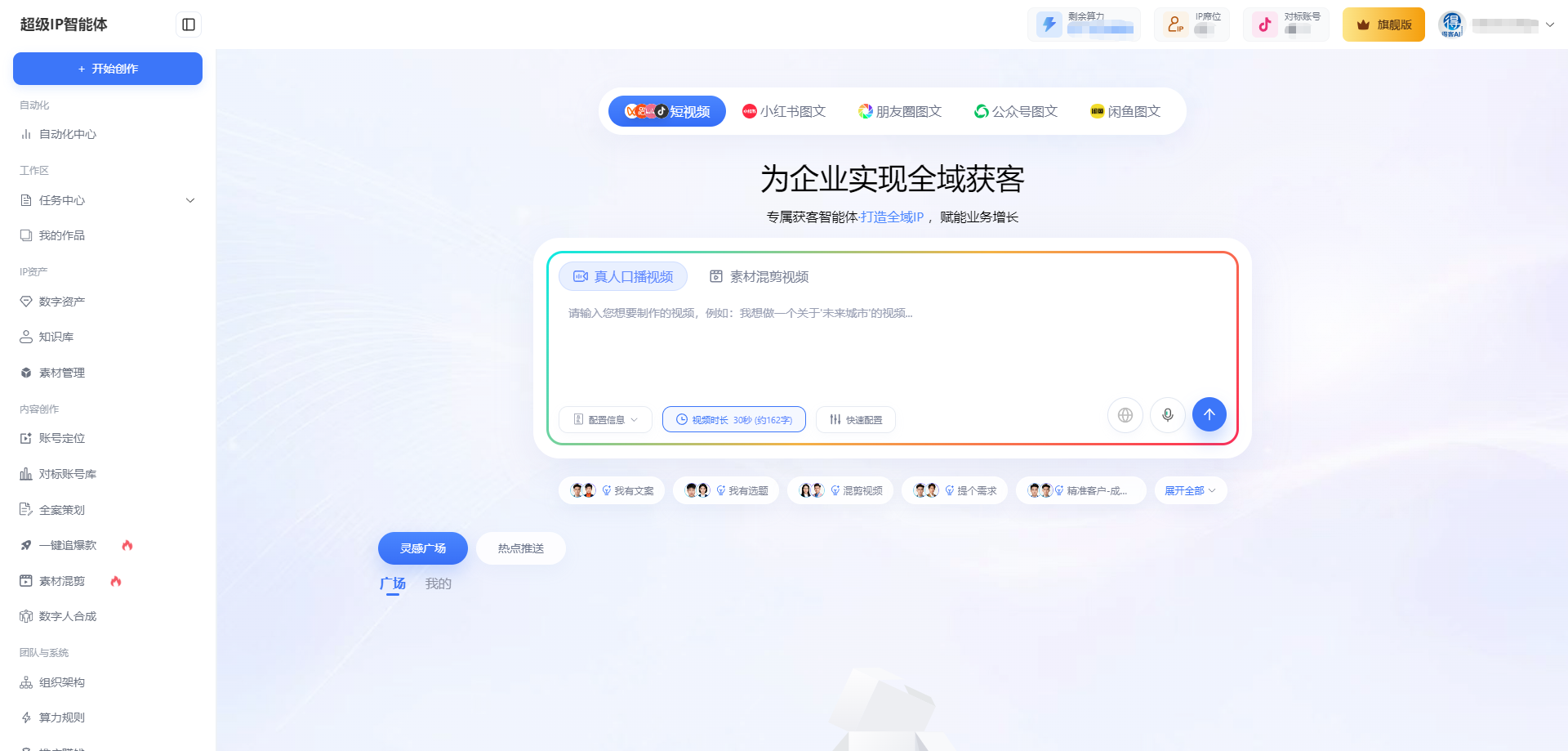
Step 1: Account Positioning — Tell AI "Who You Are"
This is the foundation of the entire workflow: AI needs to know who you are and what business you're in first, so that all subsequent content stays on track.
Click Account Positioning on the left → New Account Positioning;
Fill in the basic information (the more detailed, the better; the AI analysis will be more accurate);
Click Create and wait for the analysis to complete;
💡 The system will generate an exclusive IP planning outline (in mind map format), including persona positioning, customer acquisition paths, content directions, etc. You can use "One-click Polish" to optimize and save.
Step 2: Benchmark Account Library — Let AI Deconstruct Your Competitors
Add the competitor accounts you want to benchmark, and AI will deconstruct their viral strategies from 0 to 1.
Click Benchmark Account Library on the left → Add Benchmark Account;
Paste the link to the Douyin account you want to benchmark and submit;
Wait for training to complete (the list status changes to "Completed");
Open the deconstruction report to see: the account's high-frequency tags, data advantages, and risk points; viral topic categories (proportion of each topic type); deep traffic logic breakdown of viral topics;
💡 After the benchmark account training is complete, when making videos, you can directly mount the corresponding benchmark account, allowing AI to produce content with a similar style.
Step 3: Full-Case Planning — Get Your Overall Operational Plan
Click Full-Case Planning on the left and select your account positioning;
The system automatically generates a full-case plan based on the persona. Choose suitable copy from the to-do tasks for creation;
💡 If unsatisfied, you can click "Regenerate" in the upper right corner.
Step 4: Video Production
① Confirm Topic Selection
Clicking on a to-do task will jump to the video production interface. Click the blue arrow to "Generate";
After the task is issued, the copywriting expert will create multiple oral broadcast scripts in different styles based on your persona. Select one and click "Polish Copy"; if not suitable, click "Regenerate";
It will generate the polished oral broadcast script, video title, cover copy, and topic tags for you.
② Select Voice / Digital Avatar
Select Voice: The voice library expert will list available voices. Listen to the previews and select one for synthesizing the oral broadcast audio;
Select Digital Avatar: You can also choose a digital human avatar to appear on camera. AI will synthesize the oral broadcast video using the selected avatar (generation takes about 1–3 minutes).
③ Select Auto-Edit Template
The system will provide multiple auto-edit templates (different shot types, subtitles, packaging styles). Select one, and AI's batch auto-editing expert will automatically complete the editing, subtitles, and background music according to the template, outputting the finished video.
Step 5: Publish Video
After confirming the finished video, the short video publishing expert will provide a QR code; scan the QR code with your phone to complete the video publishing on your mobile device.
Frequently Asked Questions (FAQ)
Q1: I don't know how to edit at all, and I can't write copy. Can I use it?
Yes. The product is designed for "you provide the request + confirm the result": topic selection, scripts, voiceover, digital avatars, and editing are all handled by AI employees. You only need to click confirm at key nodes.
Q2: What if I'm not satisfied with the generated content?
There are three ways: click "Regenerate" to redo the whole thing; click "Re-edit" to only change the editing plan; or write specific revision comments in the input box (what's wrong, how you want it changed). The more specific the revision comments, the better the results.
Q3: How long does it take to generate a video?
Digital human oral broadcast video synthesis takes about 1–3 minutes. Adding topic selection, copywriting, and auto-editing, it usually produces a video within a few minutes. The page will display the generation progress.
Q4: How do I make the video use my own voice and image?
Go to "Digital Assets" on the left to upload voice models and digital human models. When making videos, just select them in the "Select Voice / Select Digital Avatar" steps.
Q5: How is computing power consumed?
Video generation, voiceover, digital avatars, and other steps consume computing power based on actual usage. The interface will display the remaining computing power in real time. If insufficient, please contact the administrator or customer service to recharge.
Q6: The website won't open, what should I do?
In this case, consider switching to a different browser.